Install TypixDeck OS
Custom repository URL
Section titled “Custom repository URL”https://github.com/TypixNode/pi-gen/releases/download/typixdeck-latest/os_list.jsonThis URL always points at the latest build. Source: github.com/TypixNode/pi-gen
(branch typixdeck), every image is on its
Releases page.
-
Install the latest Raspberry Pi Imager (2.x recommended; 1.7.3 is the minimum for custom devices).
-
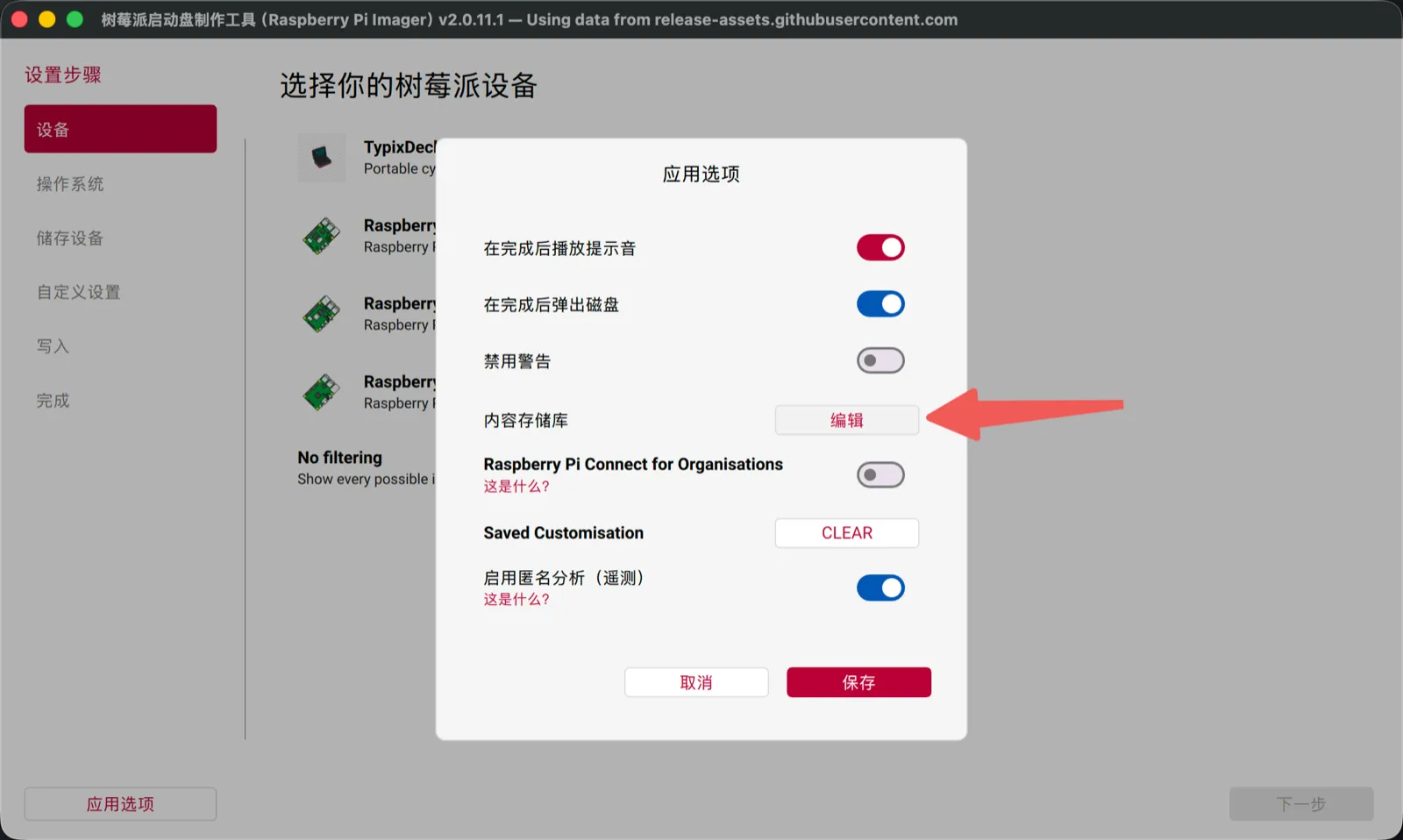
Click App Options at the bottom left, then Edit next to Content Repository:
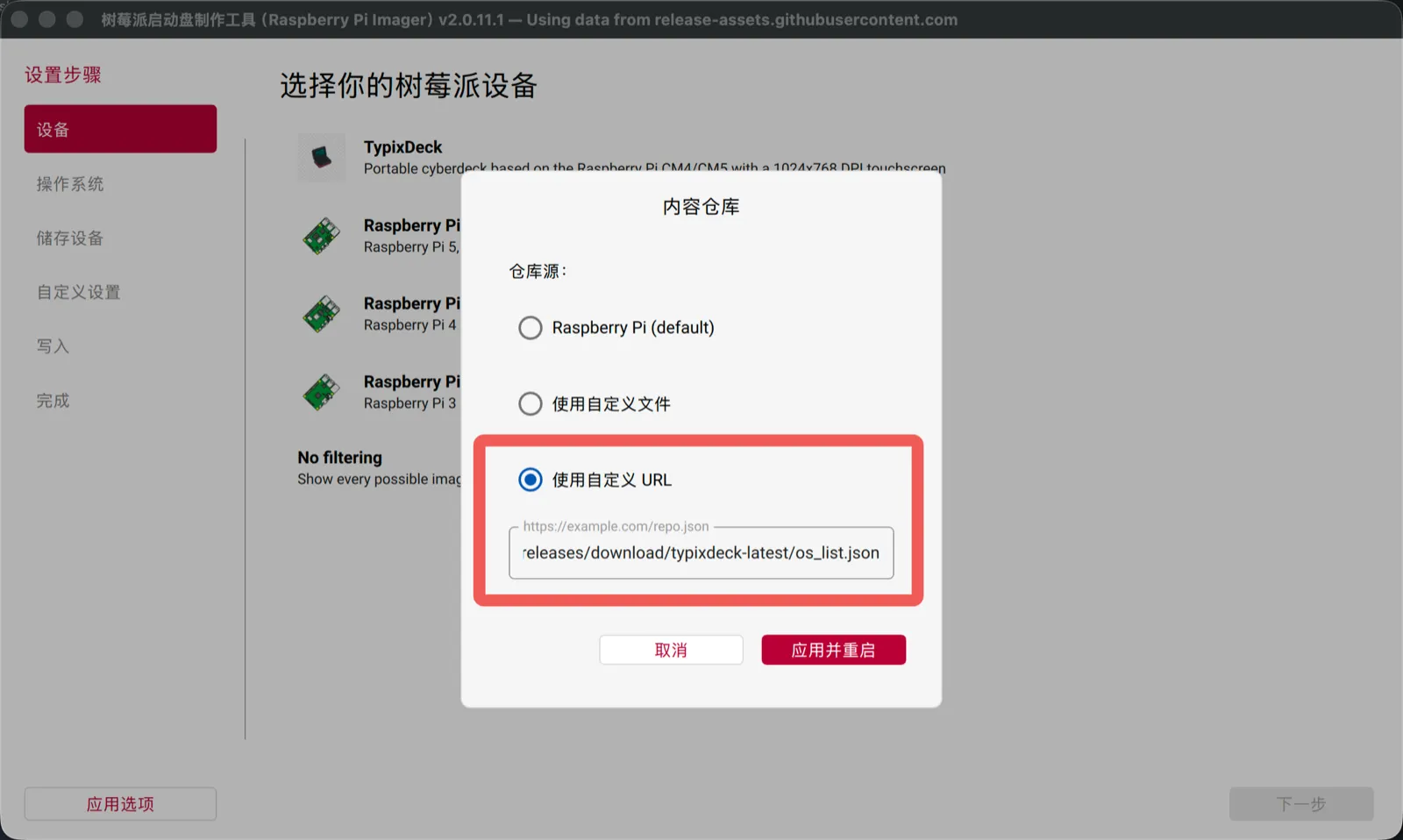
Choose Use custom URL, paste the URL above and click Apply and restart:
Or start Imager from a terminal with the repository already set:
Terminal window rpi-imager --repo https://github.com/TypixNode/pi-gen/releases/download/typixdeck-latest/os_list.json -
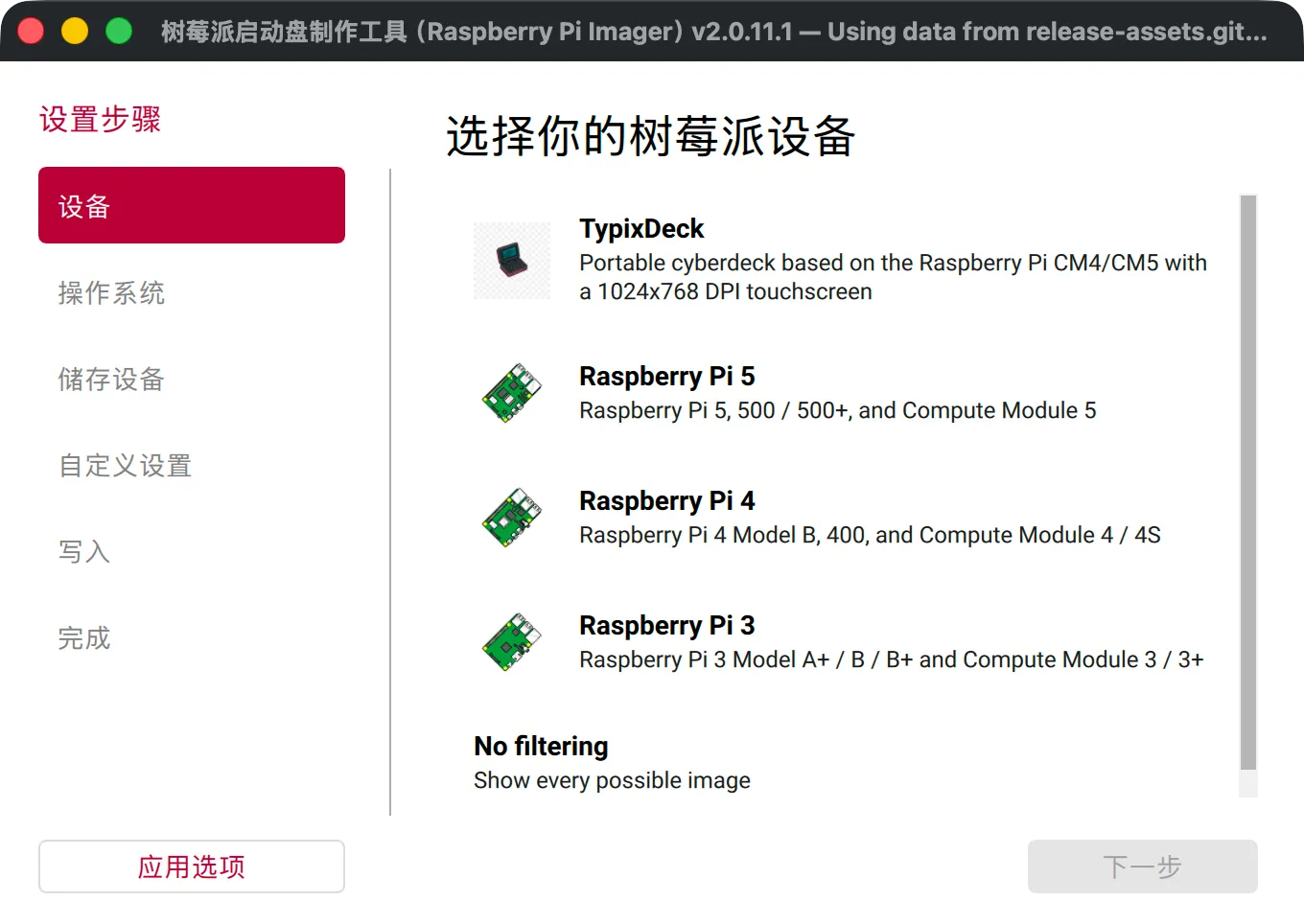
TypixDeck is now the first device in the list and selected by default:
-
Choose the OS:
Image For Raspberry Pi OS Desktop (Trixie arm64) for TypixDeck CM4 / CM5 - start here Raspberry Pi OS Slim Desktop for TypixDeck Compute Module 3 (4 GB eMMC) … + Phosh (Beta) Touch-first mobile shell, see Phosh … + KDE Plasma Mobile (Beta) Touch-first, known rendering issues The Beta builds folders hold the most recent five builds of each variant.
-
Pick the storage. For an eMMC compute module, first expose the eMMC over USB with
rpibootas described in Flashing Firmware. -
In Customisation set the user name and password, Wi-Fi and enable SSH - the images apply these through cloud-init, exactly like official Trixie images.
-
Write, eject, power on.
After the first boot, update the ESP32-S3 and the keyboard from the device itself with the
tools the image ships in /opt/typixdeck/firmware/ - see
Flashing Firmware.
Prefer stock Raspberry Pi OS?
Section titled “Prefer stock Raspberry Pi OS?”The manual guide for stock Raspberry Pi OS lists every change TypixDeck OS makes, ordered by priority, with the reason for each and the commands to apply it yourself.